


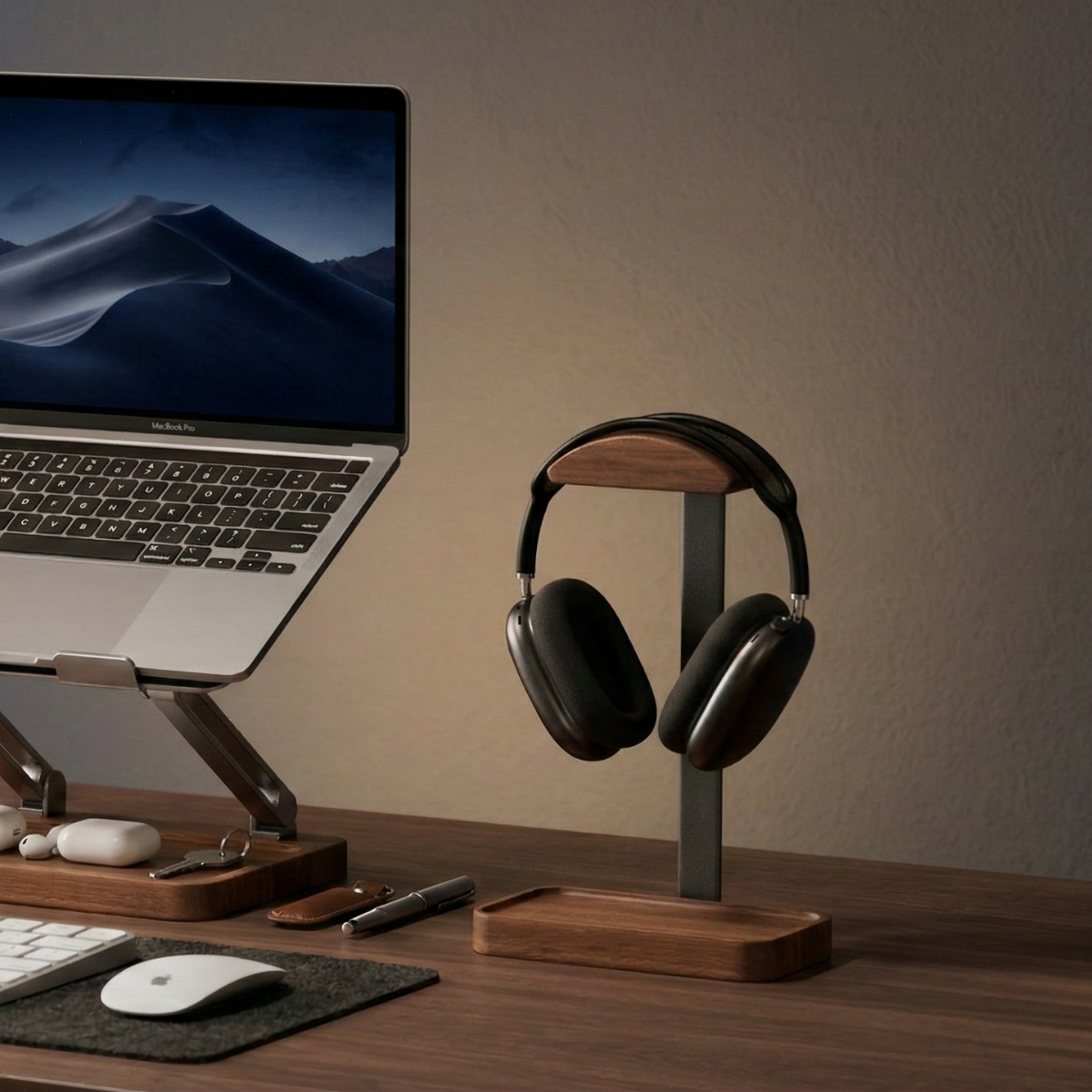
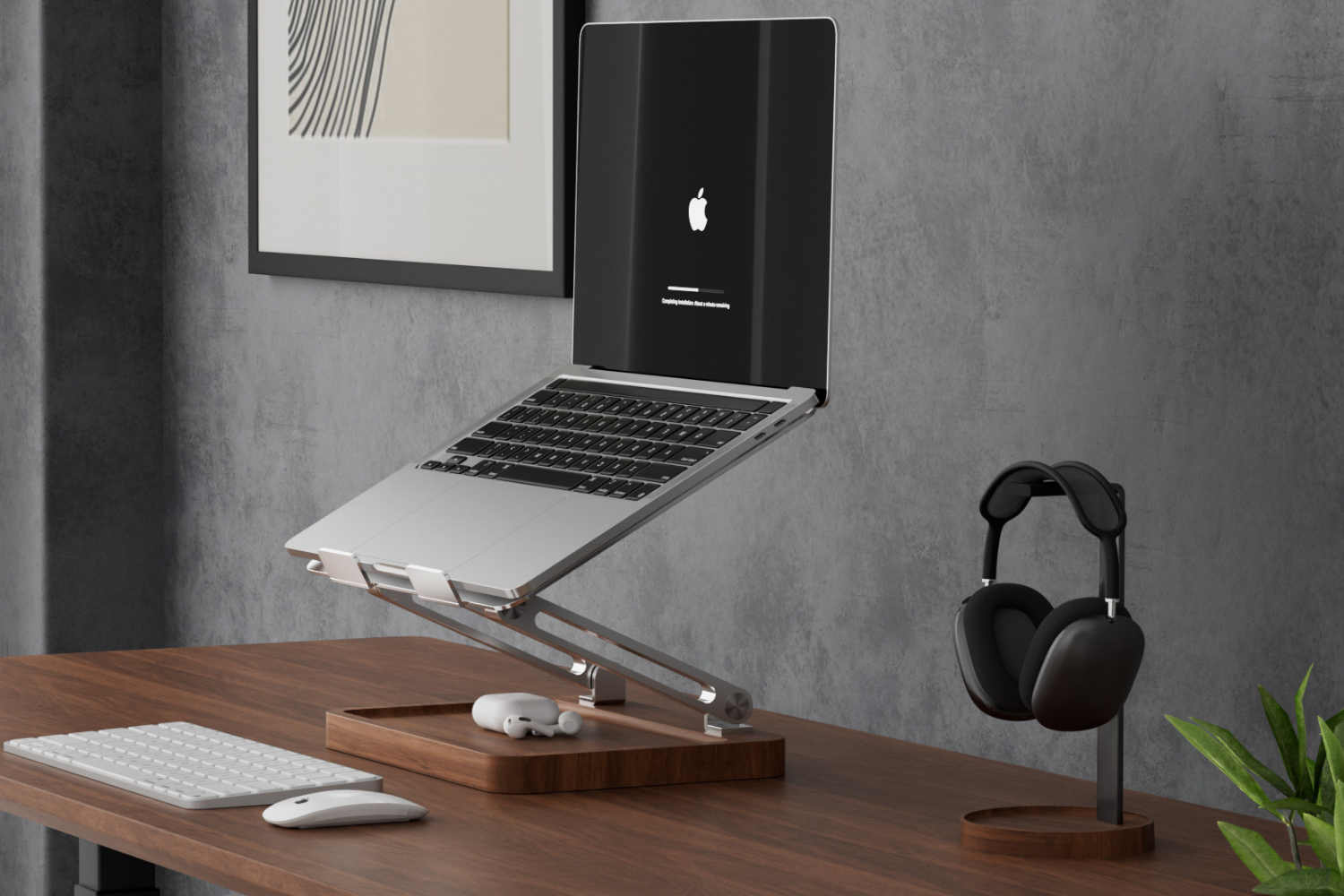
Using an adjustable laptop stand starts with the complete desk arrangement: the laptop support, the screen position, the keyboard, and the cables you use every day. Raise the screen only after checking that the device sits securely and your other equipment has a practical place.
The steps below focus on setup and everyday use. A stand is not a guarantee against discomfort, overheating, or hardware problems.
Check the laptop and support first
Review the dimensions, contact points, and supported device weight for the particular stand. Screen size by itself does not tell you how the laptop rests on the support.
The Musowood Adjustable Laptop Stand uses a walnut wood base, sandblasted aluminum support, and two-axis adjustment. Its open-frame design leaves space around the supported laptop. Keep the device's vents unobstructed and follow the laptop manufacturer's ventilation instructions; an open frame does not guarantee a lower temperature.
Set the stand on a stable, level surface. Check that the laptop rests properly on the intended support points before using it, and follow the product's adjustment instructions.

Arrange the keyboard and mouse
When you raise a laptop, its built-in keyboard rises with the screen. Before choosing an elevated position, decide how you will type and move the pointer.
For larger laptops or elevated positions, Musowood recommends an external keyboard and mouse. Put those devices on the desk before filling the surrounding space with accessories. Leave the mouse room to move and keep the keyboard easy to reach.
If you prefer using the laptop's own keyboard, check the complete arrangement at the position you intend to use. Avoid choosing an angle from a photograph alone.
Make changes one step at a time
Arrange the screen for the task in front of you, whether that is reading, joining a call, or working beside another display. Check the laptop's position and cables after changing the stand's angle or height.
Do not treat an adjustable stand as a standing-desk converter. The product must support your intended arrangement within its own adjustment range and instructions.
Allow space for connections
Connect the power cable and any external display or accessories. Leave enough slack to reach the ports without pulling on the laptop or tipping its support. Check that a connector does not press against a support arm or a neighboring accessory.
If you regularly unplug the laptop, make that movement part of the setup check. You should be able to reach the connector and lift the device away without catching a monitor edge or lamp.
Check the arrangement during normal use
Try the activities you actually do: typing, using a mouse, reading a document, or opening a notebook. If something repeatedly needs to be moved, simplify the layout before adding more storage.
For a small surface, our laptop and monitor desk planning guide provides a paper-layout checklist. If you keep the laptop closed while using another display, a different support may fit your workflow; see vertical laptop stands vs laptop risers.
Compare the adjustable laptop stand with other Musowood laptop supports, using your device's dimensions and the way you work as the starting point.
Want a broader comparison of wooden risers, adjustable stands, and vertical docks? Read How to Choose a Wooden Laptop Stand.


Leave a comment
This site is protected by hCaptcha and the hCaptcha Privacy Policy and Terms of Service apply.